

How to Identify What Database is Assigned to Which WordPress Site From cPanel
When making changes to your site from the Database, or need to reset your theme, plugins, passwords, ect and can't have access to your WordPress dashboard, it is VERY important to understand which database is the correct one to edit. Making changes to the wrong database can result in failed login attempts, broken site url's, pages, and other errors. From cPanel, there is a quick way to make sure you stay on track!
- Login to your cPanel account.
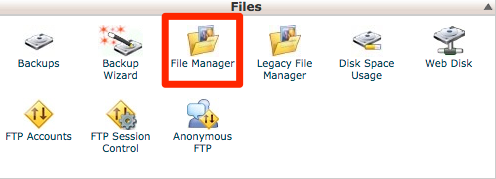
- From there, scroll down to the Files section and select the File Manager icon.
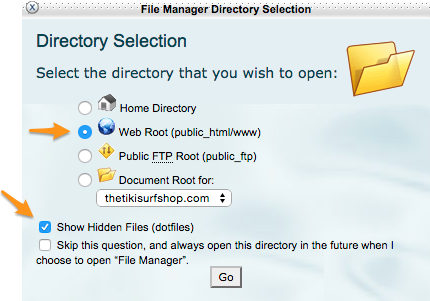
- Select to go to the 'Web Root/Public_html' directory and press Go. From there, make sure you navigate to the folder your WordPress site is referencing.
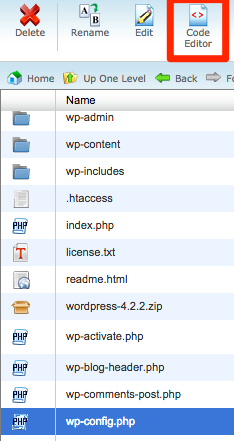
- Once in the correct folder, scroll down the mail section of your screen to locate the 'wp-config.php' file. Select the file once to highlight it in blue, then on the top of the File Manager toolbar, select the Code Editor icon.
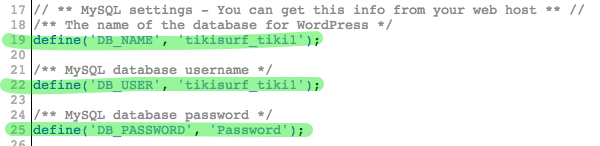
- Once inside the editor, you can locate the database the site is referencing by locating the 'Database_name' line (19 in most cases) and you will see the full database, and below, the database_user and database_password being used.
How to Display Social Media Links on Your WordPress Site
If you have a website, chances are you want to find ways to have it link it to Facebook, Twitter, Google Plus, and other social media.
How to Install a Plugin
Not finding the feature you need for your site from your theme options or default WordPress settings?