How to Resize Images in Your WordPress Media Library
Want your site to load faster? Well, one way to do that is to size your images correctly, and rather than having to use software like photoshop, gimp, etc you can resize them right from your media library!
- Login to your site's WordPress Dashboard.
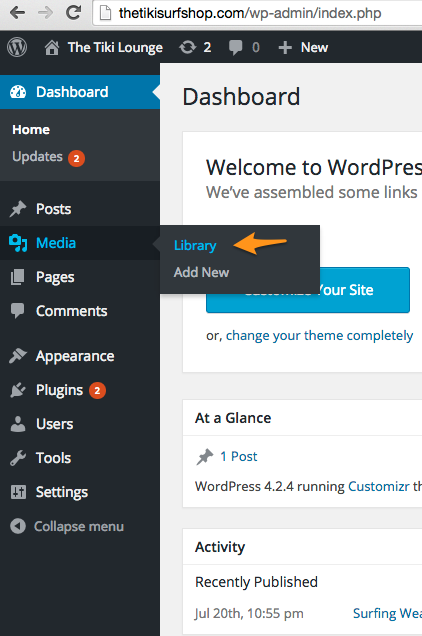
- Move your mouse over the Media tab from your Dashboard toolbar on the left, then select the Library option from the sub-menu.
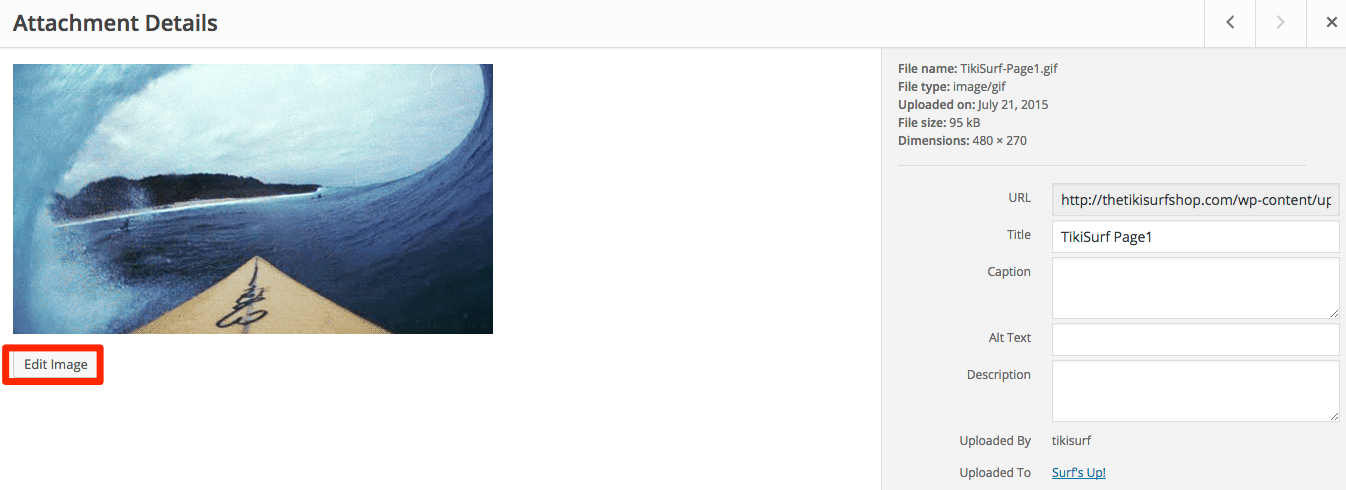
- Once in the Media Library, select the image you wish to resize. A popup window will there appear with details about that file. Select the Edit button on the bottom left.
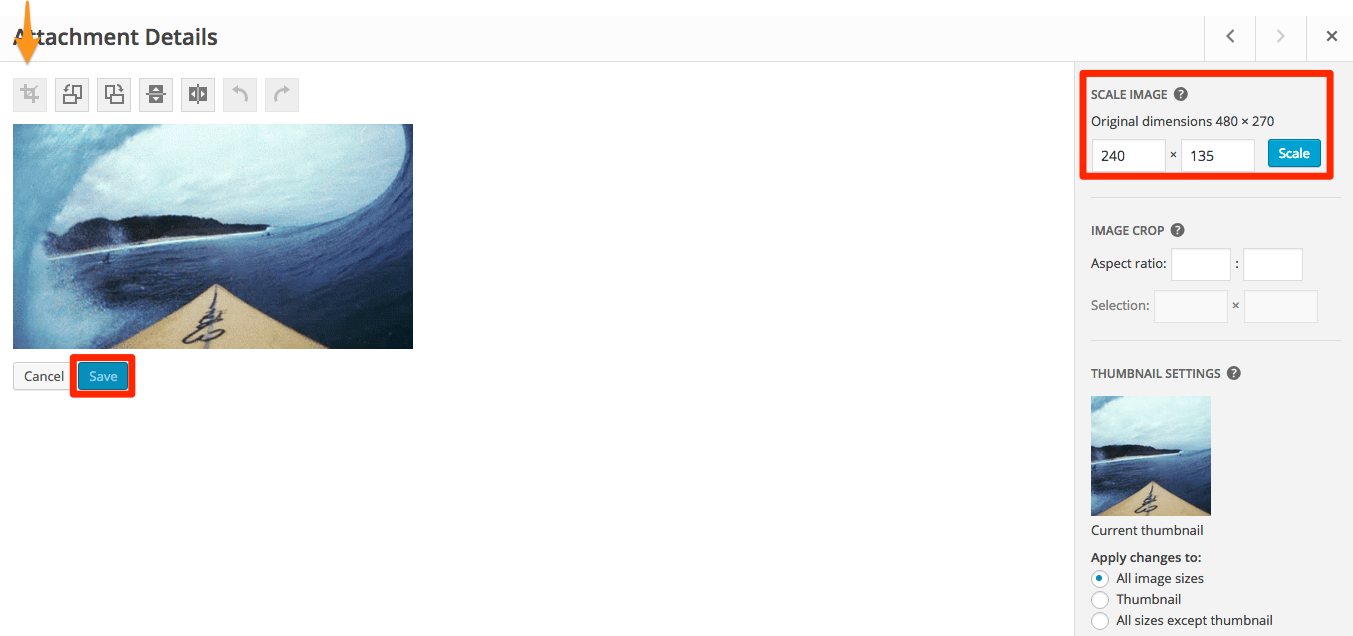
- From the editor, you will have the option to manually enter in the scale you want the image to be to the right. You may simply type the dimensions to use and select the Scale button. You may also crop the image itself by clicking on the image, then dragging your mouse to where you want the image cropped. A dashed rectangle will appear that you can use to help make any final adjustments. Once you have the dimensions how you want, select the Crop icon, the first icon above the image, then press the Save button to save the changes.