

How to Reset Your WordPress Password From cPanel
With so many logins a person has these days, it's no surprise when once in a while, login information is forgotten. Fortunately, with your cPanel login information, you can still get into your WordPress site if that information happens to be one not remembered. Here is how to get that!
- Login to your cPanel account.
- From there, scroll down until you find the Databases section and select the PHPmyAdmin icon.
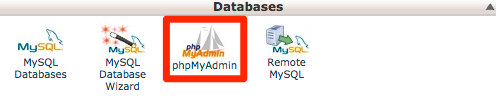
- A login screen will appear. Your username will be your 8 character username for cPanel, and the password will be your main cPanel login password. Once that information is entered, select the 'Login' button.
Note
If you don't know/remember your 8 character cPanel username, you can find it under the Stats section of cPanel, on the left hand side of your screen
- Once logged into 'PHPmyAdmin,' locate your WordPress sites's database on the left column, and select the '+' symbol to the left to bring down an expanded sub-menu. If you are unsure what your Database is, you can follow theses instructions to obtain it here.
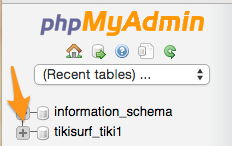
- With the Database's sub-menu now visible, you will see a list of database tables in the window to the left. Locate the 'wp_users' table and select it.
- On the main section of your screen you should now see a table with individual users. This is a list of any user created for the WordPress site. Locate your username, and to the left of the username, you will want to select the Edit hyperlink.

- From there you will find another table, The password row will show to the far right a jumbled mess of characters. This is your current encrypted password. You will want to delete that mess, and enter a new password that you will want to use. Once done, on the column to the left will be a white space with a dropdown menu. Select the dropdown box, and choose 'MD5,' which will encrypt your new password.
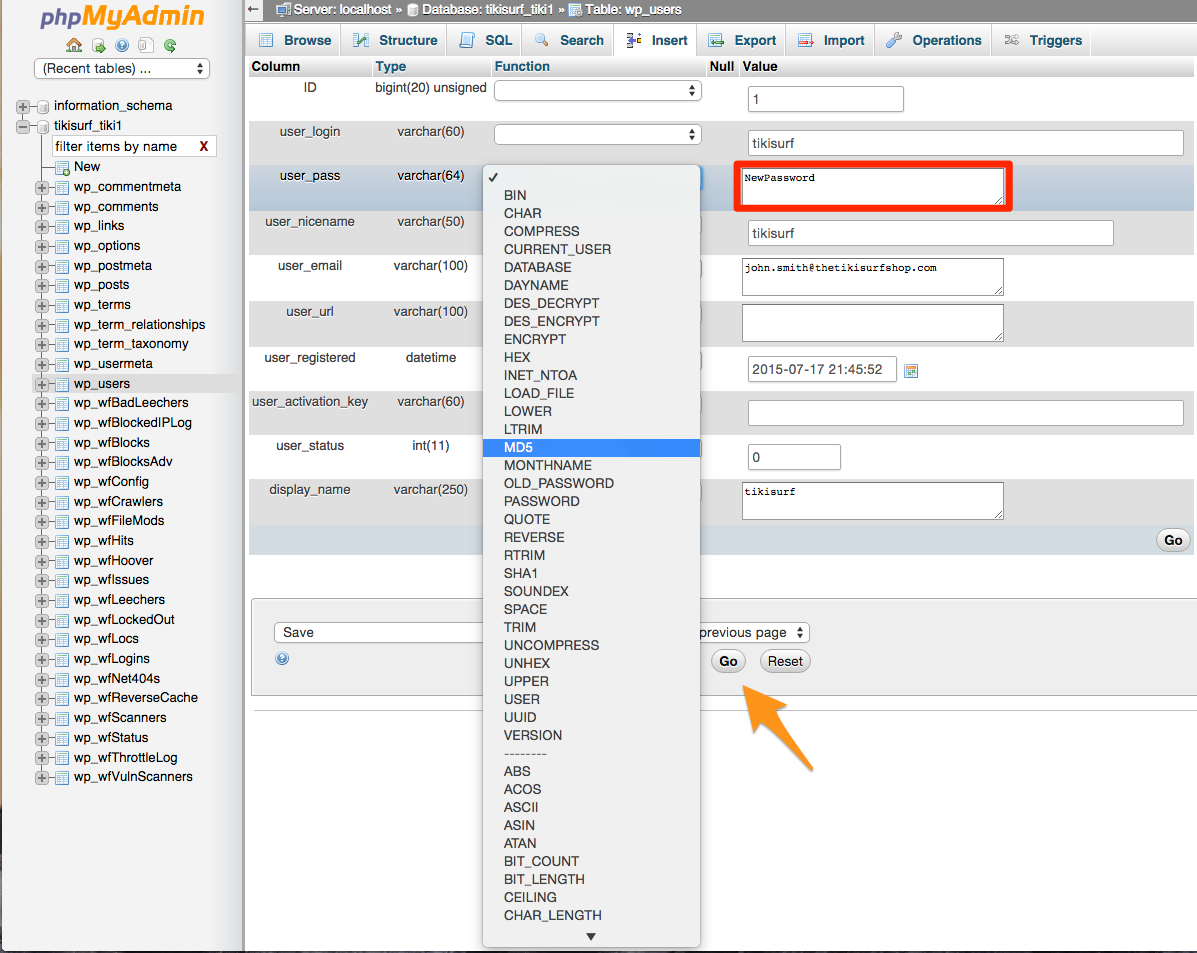
- Once you have checked to make sure your password is correct, and that you have written it down somewhere else if needed, press the 'Go' button on the bottom right side of the window to save the changes.
You can also update your WordPress login username, and the email address associated with the user from this window. Feel free to make those changes as desired.
- Now you can go to your website's WordPress login page and by entering the new information you will be able to again access your dashboard!