

Zimbra Filter - Impersonation Moved to Inbox
Log into Zimbra.voonami.com.
- Log into Zimbra.voonami.com.
- Navigate to preferences or settings.
- Click on filters.
a. Click Create or Add a Filter to add a filter.
b. Filter Name: Impersonation warning.
c. Ensure the Active box is checked.
d. If ANY of the following conditions are met:
e. Subject, Contains, Impersonation Warning
f. Perform the following Actions:
g. Move into folder, Junk
h. Ensure the Do not process additional filters is chosen.
Classic UI:
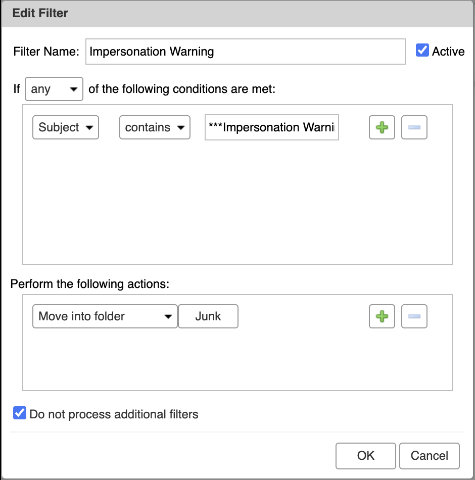
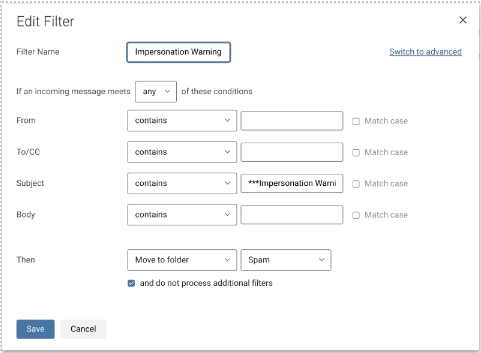
i. Click OK or Save to save the filter.
j. Click Create to Add a filter
k. Filter Name: Allowed Emails
l. Ensure the Active box is checked.
m. If ANY of the following conditions are met:
n. In the modern UI click advanced to add multiple conditions.
o. From contains “the email we wish to allow” ANY
p. Perform the following actions:
q. Keep in Inbox
r. Ensure Do not process additional filters is checked.
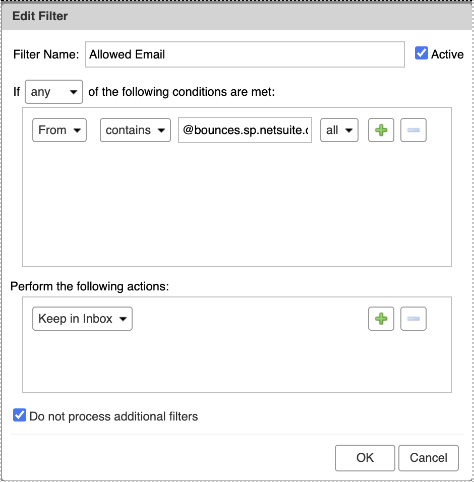
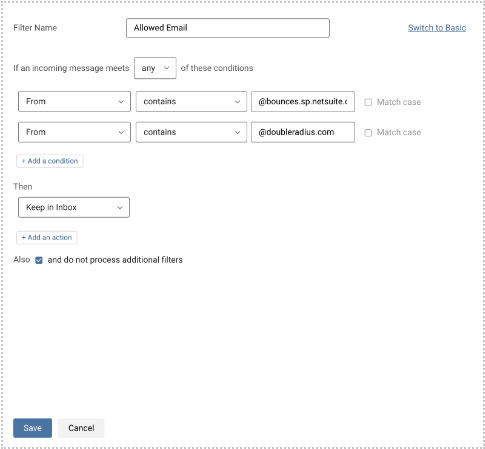
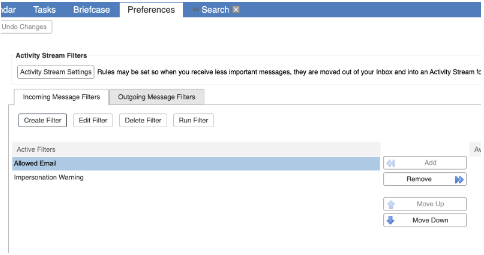
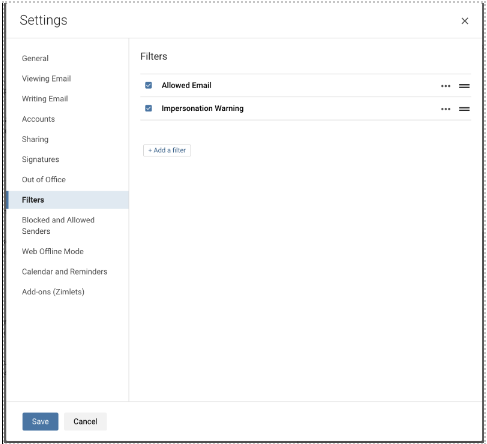
s. Ensure the rules are mapped with Allowed Email on top of Impersonation Warning and that both rules are in the active filters column.
Zimbra Email Clients
Older PCs (32 bit)) + Step-by-step guide Zimbra Desktop + For Windows + For Mac OSX Zimbra Web + Zimbra Web for any web browser Other Mail Clients + Manual Mail Client.
Zimbra Filter - SPAM Moved to Junk Folder
Utilize the following filter to automatically move emails marked as SPAM by our Spam/AV filter into your Zimbra Junk folder.